Showing posts with label Animation. Show all posts

Saturday, February 25, 2012

How to...

upload animated gifs to a site, then to your blog!


Well hello there. To make it short, I've been pretty busy with school stuff, so that explains why I've not posted for a very long time. Well anyways, let's get started with this stuff. Basically, I made an animated gif on Stykz and I'm going to upload it to a website. Just to let you know, this isn't the only way to upload an animated gif to your blog. in fact, you can just upload the gif straight to your post, but today I'm showing you the website-uploading way. Well anyways, first we're going to go to http://freeimagehosting.net/. When you go there, you should see this:
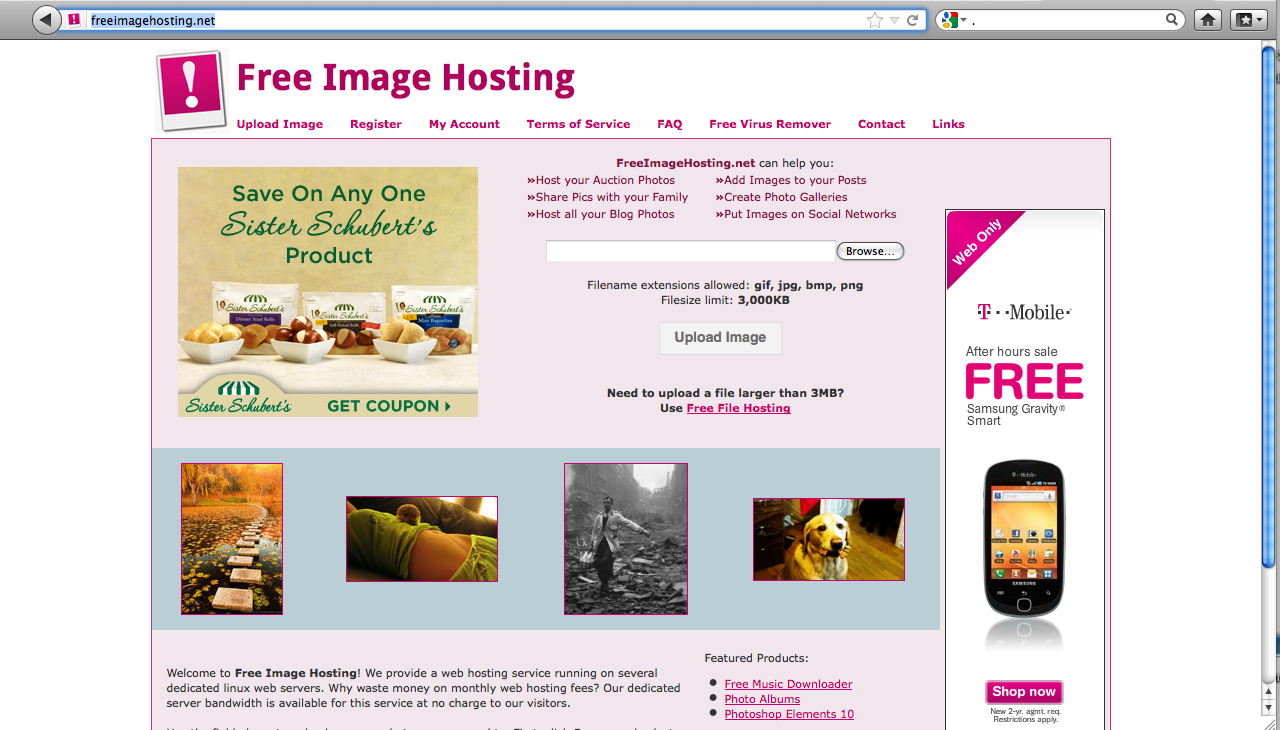
Now, we will just click our mouses inside this little box to browse our folders to find our animated gif.
Hmm... I'll pick 'Spitest.gif'
 Now, after you have chosen your gif., just press open. You should arrive here, and the source of the file should be in the box, like mine below.
 Now press


Now you should get here.

Now what you want to do, is go to your blog, (I use Blogger) make a new post, edit html, then go back to Free Image Hosting and copy the image link.

 After that's done, just copy this:  <a href="http://www.freeimagehosting.net/"><img alt="Free Image Hosting" border="0" src="http://www.freeimagehosting.net/pap65" /></a> and replace the link inside it with your link, then paste the code into your post, which is now in the html editor form.

 Now publish the post, and there you have it! an animated gif on your blog!

Well, signing out for now, iHow. see you next time, at http://www.ihow101.blogspot.com!


Free Image Hosting

Monday, July 25, 2011

How to...

Put Animated GIF's into a regular post on Blogger!
I like uploading the animated GIF's to image hosting servers. For smaller gifs, I use http://www.z-up.net/ , and for larger ones, I use http://www.freeimagehosting.net .  Well today, I'm going to show you how to upload to z-up. first of all, click the link that I just wrote a few sentences ago. Here's what should appear.
Click 'Browse' and pick the GIF you want. I've already showed you how to make an animated GIF here.
So Pick the gif you want and click 'Open'.
Click 'Upload'.  It should give you a link, and you can just post that link in the HTML tab in blogger. Or, If you want to put it in your sidebar, use the HTML/Javascript Gadget.

Well there you go, Enjoy!

Thursday, July 21, 2011

How to...

Export animations on Stykz!
Stykz is a stickfigure animation software, you can download it here.
Well this tutorial is for advanced users of Stykz, users that can already create fluent animations. Well first we want to open up Stykz. Get the animation you want, or if you haven't made one, then  make one.


Here is a Stykz animation I made following a tut on YouTube. That's why it might look familiar when you see it playing. Well on stykz, you can Export it to five things, but I only use two of them, Animated GIF, and Quicktime video (.mov). Today I'll be showing you how to export to either two of them. First, I'll show you how to export to an Animated GIF. First, click the 'File' Tab, I have a Mac, so your list of tabs are in a different place. But well yeah, click file.
File>Export Animation. Click Export Animation^.
You should arrive at a page that looks something like this:
The default setting, as you see, Is a Quicktime Movie(.mov). Well change that to Animated GIF.
Make sure it's an ANIMATED GIF, not a Sequence of GIF Images.
Pick 'Animated GIF.'

 Once you've done that, just press 'Save'.
Arrive here and then press Export.

And you've got an Animated GIF!
Free Image Hosting